
How Identity Confluence Detects Access Anomalies
Last Updated date: November 27, 2026
On this page
See Tech Prescient in Action
Automate access, reduce risk, and stay audit-ready
Access anomalies can indicate that users have permissions that differ from the access patterns of their peers. For example, an employee may have accumulated unnecessary privileges, received access to an application outside their usual role, or retained permissions that are no longer required after a job change.
Behavioral signals help organizations identify these unusual access patterns by analyzing how permissions are distributed across users and cohorts. Instead of relying entirely on manual access reviews, organizations can identify unusual privileges, investigate flagged users, and take corrective action.
How to Detect Access Anomalies in Identity Confluence
Identity Confluence helps identify unusual access patterns through its Analyze Anomalies functionality.
To access this feature, navigate to:
Identity Confluence → Identity Lifecycle → Identity Management → Analyze Anomalies
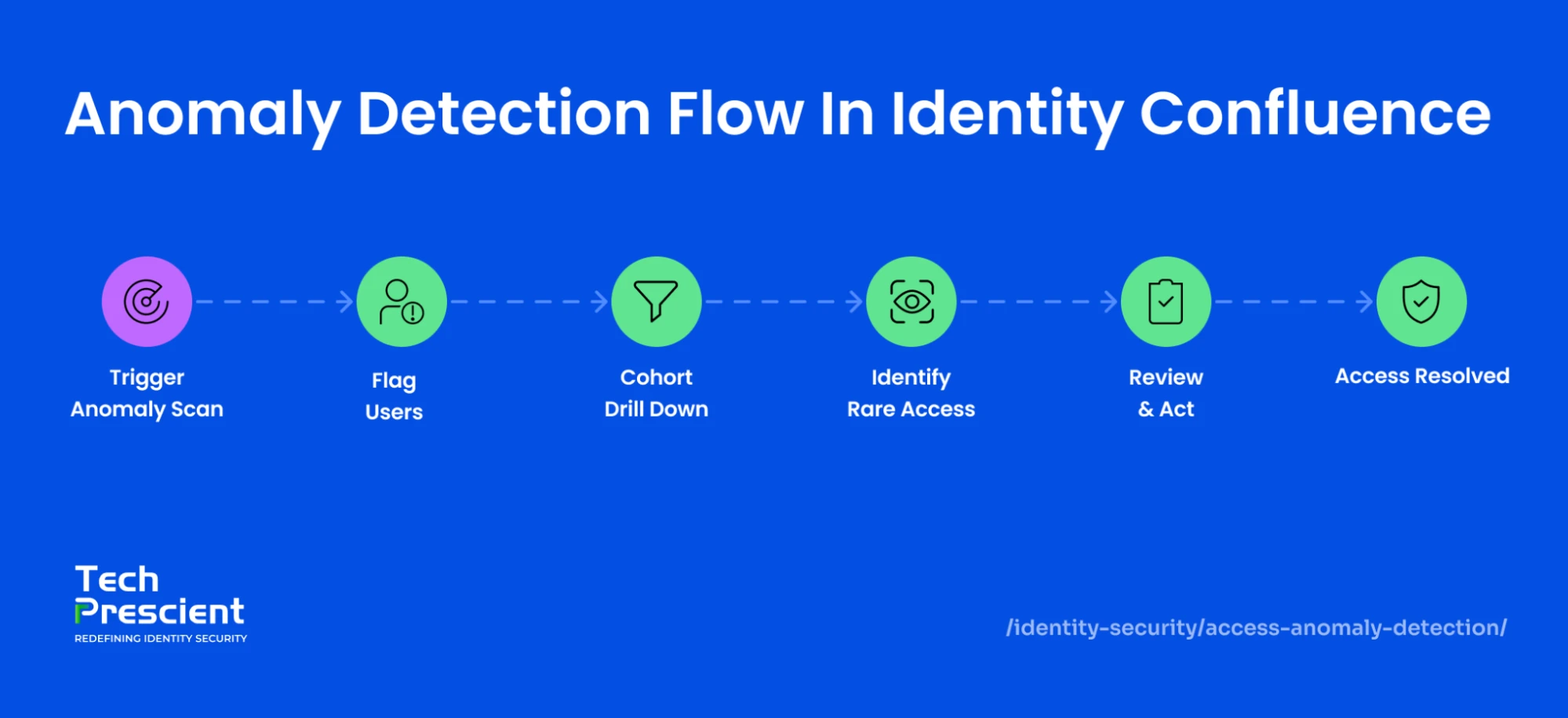
1. Trigger an Anomaly Scan
Under Identity Management, navigate to Analyze Anomalies and click Trigger Anomaly Scan.
This initiates a scan that analyzes user access and identifies unusual permission patterns. Once the scan is complete, it flags users with potentially anomalous access for review.
For example, out of 200 users, the scan may identify 36 flagged users. These users can have different types of access anomalies, including:
- Privilege Creep: Users have accumulated additional permissions beyond what their roles require.
- JML Cleanup: Users may have access inconsistencies following Joiner, Mover, or Leaver events. For example, an employee who changes departments may retain access associated with their previous role.
- Specialized Access: Users have permissions that are uncommon within their respective cohorts.
The flagged user list provides a starting point for investigating these access patterns.
2. Review Anomalies and Cohort Drill Down
After the scan, Identity Confluence provides two options:
- Review Queue: Displays flagged users whose access requires investigation and review.
- Cohort Drill Down: Provides a breakdown of access distribution across users by role and entitlement.
The Cohort Drill Down helps administrators understand how access is distributed within a group and identify permissions held by only a small percentage of users.
3. Identify Rare Access Through Cohort Analysis
Within Cohort Drill Down, access distribution is presented through Role/Entitlement and Share of Group.
Share of Group indicates the percentage and number of users within a cohort who have access to a particular application, role, or entitlement.
For example, consider a cohort of 100 users:
| Application | Users with Access | Share of Group |
|---|---|---|
| Cloudflare | 52 | 52% |
| Retool | 20 | 20% |
| Specialized Cloudflare Secret Role | 1 | 1% |
| Datadog Monitor Role | 1 | 1% |
When an entitlement is held by fewer than 10% of users in a cohort, it is identified as Rare Access.
For instance, if only one employee out of 100 has the Cloudflare Secret Role, that permission is flagged as rare access. This does not automatically mean the access is inappropriate. However, it indicates that the permission is uncommon compared with the access patterns of other users in the same cohort.
This helps administrators identify specialized permissions that may require additional validation.
4. Take Action on Rare Access
Once rare access is identified, administrators can choose from three available actions:
Revoke Access
If the permission is unnecessary or no longer required for the user's responsibilities, the administrator can revoke it.
Send to Manager for Review
If the administrator is unsure whether the permission is appropriate, the access can be sent to the user's manager for validation. One click sends the notification.
Mark as Expected
If the administrator confirms that the user legitimately requires the specialized permission, they can mark it as expected.
For example, if Arush is the only person in a cohort of 100 users with a particular privileged role, the permission will initially be identified as rare access. If the administrator confirms that Arush requires this access for his responsibilities, they can select Mark as Expected.
Once marked as expected, the permission is treated as legitimate access rather than an anomaly requiring further attention.
Next Steps
An access review is only as useful as the attention it directs. When every entitlement looks the same, reviewers approve by habit, and the unusual access passes through.
With Identity Confluence, the anomaly scan surfaces the users who stand out, cohort drill-down shows how their access compares with their peers, and rare access can be acted on immediately.
The objective is simple: spend review effort where access is unusual, not where it is routine.


GET A PERSONALIZED DEMO
See Identity Confluence in Action
“One platform to govern identities, automate access decisions, and prove compliance; across every app, user, and system in your environment.”



Murli Ramsunder
Senior Architect, Vonage